Getting consistent one-tap headshots in Deagle Arena comes down to more than raw aim—your deagle arena fps settings determine how smoothly your crosshair tracks targets and how quickly you react. Since this Roblox shooter is a Deagle-only experience where every bullet matters, dialing in your setup is the difference between dominating the FFA Deathmatch lobby and feeding kill streaks. Discover the exact settings, sensitivity values, and control tweaks that top players use to climb the competitive ranks.
Why Your Deagle Arena FPS Settings Matter for First Time Playing
When you're first time playing Deagle Arena, the default Roblox settings can feel floaty and unresponsive, which directly hurts your accuracy with the single-shot Deagle. The game demands precise flick shots and quick target acquisition, so any input lag or frame drop translates to missed headshots. According to community reports, players who optimized their settings saw an immediate improvement in their kill-to-death ratio within their first few sessions.
The core problem is that Roblox's default graphics quality often prioritizes visuals over performance, causing frame rate dips during intense firefights. Since Deagle Arena is a fast-paced Deathmatch shooter with up to 8 players per server, maintaining a stable 60+ FPS is critical for tracking moving enemies. Here's what you need to prioritize:
-
Frame rate stability over visual fidelity for consistent hit registration
-
Mouse sensitivity that matches your flick style without overshooting
-
Crosshair visibility against varied map backgrounds
-
Camera sensitivity on mobile or controller for consistent tracking
Your deagle arena fps settings directly influence how the game feels, because the Deagle's recoil pattern requires precise mouse control to reset between shots. Players who ignore these settings often struggle with over-flicking or under-tracking, which is one of the most common deagle arena beginner mistakes reported in community forums. The good news is that fixing these issues takes less than five minutes and can transform your performance immediately.
Optimal Graphics Settings for Maximum FPS
The graphics tab in Roblox offers several quality presets, but most competitive Deagle Arena players recommend manually tuning these options for the best balance of performance and visibility. Since the game features clean arena environments without complex textures, you can run lower graphics settings without sacrificing your ability to spot enemies.
Recommended Graphics Configuration
| Setting | Recommended Value | Why It Matters |
|---|---|---|
| Graphics Quality | 1-3 (Manual) | Reduces GPU load, keeps FPS stable during fights |
| Shadow Quality | Off | Shadows obscure enemies in corners and cost FPS |
| Lighting Quality | Low | Arena lighting is flat anyway, no competitive benefit |
| Anti-Aliasing | Off | Smoothes edges but blurs distant targets |
| Texture Quality | Medium | Keeps skins visible without heavy VRAM usage |
| Effects Quality | Low | Muzzle flash and particle effects can distract aim |
| Render Distance | Medium | You only need to see across the arena, not beyond |
Lowering your graphics quality to level 1-3 typically yields the biggest FPS boost, because Roblox's auto-quality system often over-allocates resources. The official game page notes that Deagle Arena is optimized for performance, but your device still needs headroom for the slide mechanics and fast camera movements. If you're playing on a laptop or older PC, consider disabling shadows entirely because they're the single largest FPS drain in Roblox games.
For players using the deagle arena fps settings on mobile devices, the same principles apply—reduce graphics quality and disable unnecessary effects to maintain a smooth frame rate. Mobile players should also disable the "Camera Bounce" option if available, because it adds unnecessary motion that can throw off your aim. According to player experiences shared on the Roblox group page, consistent 60 FPS on mobile makes the slide mechanic significantly easier to execute during combat.
Best Sensitivity and Control Settings for Accurate Aim
Your mouse sensitivity is arguably the most important part of your deagle arena fps settings, because the Deagle requires precise crosshair placement rather than spray control. Since every shot is a single bullet, you need a sensitivity that allows both quick flicks and fine adjustments without feeling twitchy. Community testing suggests starting with a lower sensitivity and gradually increasing it until you find your sweet spot.
Sensitivity Table for Different Devices
| Play Style | Mouse DPI | In-Game Sensitivity | Best For |
|---|---|---|---|
| Wrist Aiming | 800 DPI | 0.3-0.5 | Fast flicks, aggressive play |
| Arm Aiming | 400 DPI | 0.6-0.8 | Precise tracking, controlled shots |
| Hybrid | 600 DPI | 0.4-0.6 | Balanced approach, most versatile |
| Mobile Player | N/A | 50-70% Camera | Touch controls, swipe tracking |
| Controller | N/A | 3-4 Look Speed | Analog stick precision |
The key is consistency—once you find a sensitivity that works, stick with it across all game modes so your muscle memory develops properly. Many players report that changing sensitivity frequently is one of the biggest deagle arena beginner mistakes, because it prevents your brain from internalizing the flick distances. If you're transitioning from other shooters, start with a similar sensitivity and adjust based on how often you overshoot or undershoot targets.
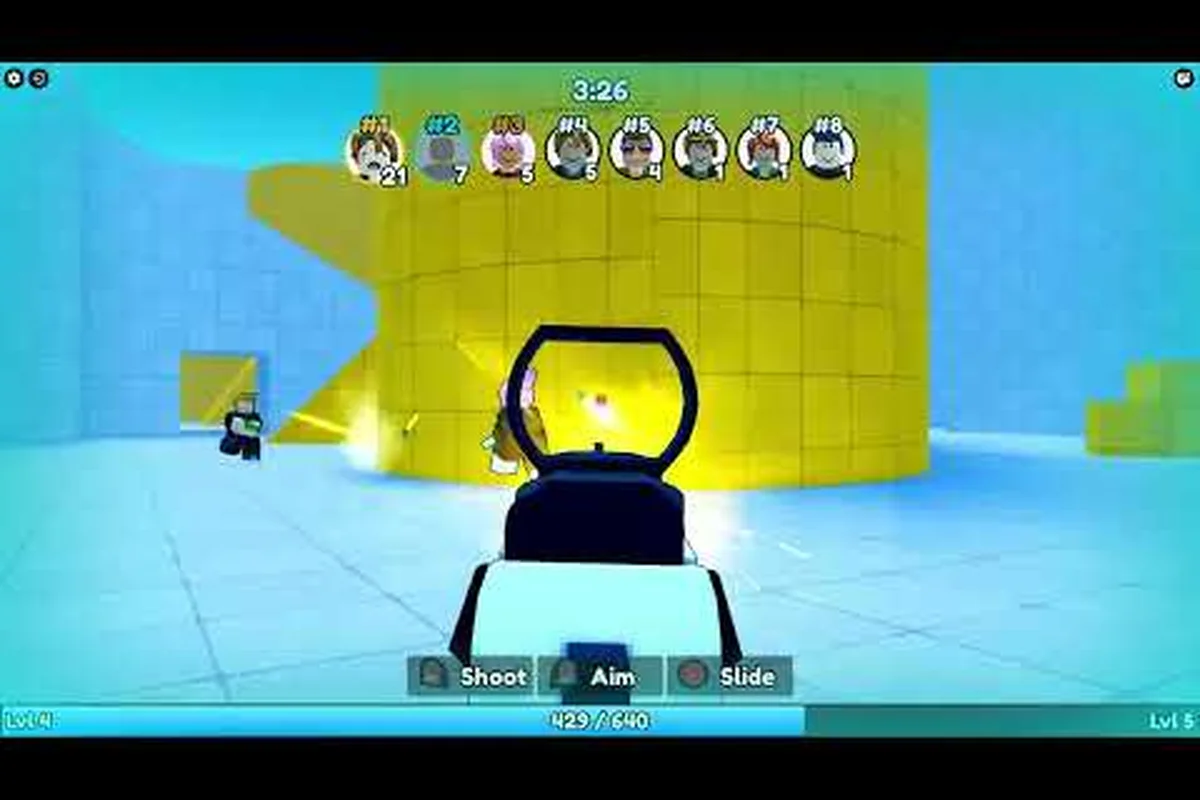
For controller players, the official game page lists the controls as: Shoot R2, Aim L2, Slide B/O. You'll want to set your look speed between 3-4 and adjust the aim assist strength if available, because the Deagle's one-shot potential makes even slight aim assist helpful. Mobile players should use the hold-to-aim mechanic mentioned on the game page, which lets you release to shoot—this gives you better control over timing than tapping a separate fire button.
Game Modes Explained: Choosing the Right Playlist
Understanding the deagle arena game modes explained helps you practice specific skills and find the right environment for testing your settings. Each mode emphasizes different aspects of the Deagle, and your deagle arena fps settings may need slight adjustments depending on which playlist you're grinding. The game currently offers two primary modes with distinct pacing and objectives.
Game Mode Breakdown
| Mode | Player Count | Focus | Best For |
|---|---|---|---|
| FFA Deathmatch | 8 Players | Raw aim, fast respawns | Warmup, mechanical practice |
| Competitive Ranking | 1v1 or Teams | Strategy, positioning | Climbing leaderboards |
| Classic Mode | 8 Players | Traditional FFA rules | Casual play, skin farming |
Classic mode is the default playlist where most beginners start, because it offers a pure Deathmatch experience without the pressure of ranked points. This mode is perfect for testing your new settings, since the fast respawns mean you get constant combat reps without downtime. The deagle arena classic mode guide recommends spending at least 10-15 minutes in Classic Mode after adjusting your settings to build familiarity with the new sensitivity.
Competitive Ranking mode is where your optimized settings really pay off, because matches are more deliberate and every missed shot carries consequences. Players who have climbed the leaderboards report that consistent settings across both modes help maintain their performance under pressure. If you're serious about ranking up, check out our ranked mode guide for advanced strategies beyond raw aim.
Common Beginner Mistakes That Ruin Your Performance
Even with perfect deagle arena fps settings, certain habits can hold you back. The most common deagle arena beginner mistakes reported by experienced players relate to movement, positioning, and mental approach rather than mechanical skill. Recognizing these patterns early will accelerate your improvement curve significantly.
Top Beginner Mistakes to Avoid
-
Standing still while shooting — the Deagle has a slow fire rate, so you're an easy target between shots
-
Ignoring the slide mechanic — sliding makes you harder to hit and resets your crosshair placement
-
Over-flicking past targets — this usually means your sensitivity is too high for your play style
-
Not using cover — the arena has pillars and walls designed for peek shooting
-
Chasing kills instead of positioning — aggressive play without map awareness leads to trading deaths
-
Changing settings every session — consistency builds muscle memory faster than constant tweaking
The slide mechanic is particularly important because it's the game's signature movement tool, and mastering it makes you significantly harder to hit. When you slide, your hitbox moves unpredictably, which forces enemies to adjust their aim mid-fight. Our beginner guide covers the slide tutorial in detail, but the short version is: use C or Ctrl on PC to slide, and time it as you approach corners or open areas.
Another critical mistake is neglecting your crosshair placement before you even see an enemy. Instead of aiming at the ground or walls while moving, keep your crosshair at head height and centered on likely enemy positions. This reduces the distance your mouse needs to travel for each shot, which makes your deagle arena fps settings feel more responsive because you're doing less correction work.
Performance Options for Stiff Competition
Once you've mastered the basics, a few advanced tweaks can give you an edge in competitive matches. These settings go beyond the standard graphics and sensitivity options, focusing on the finer details that separate good players from great ones. While not everyone will need these adjustments, players serious about climbing the leaderboards should experiment with them.
Advanced Configuration Options
| Setting | Default | Recommended | Impact |
|---|---|---|---|
| Camera FOV | 70 | 90-100 | Wider view, better peripheral awareness |
| Mouse Acceleration | On | Off | Consistent tracking, no variable speed |
| Crosshair Size | Medium | Small | Less screen clutter, precise aiming |
| Crosshair Color | White | Green/Cyan | Better contrast against arena backgrounds |
| V-Sync | On | Off | Reduces input lag, smoother mouse response |
| Network Quality | Auto | High | More consistent hit registration |
Turning off mouse acceleration is one of the most impactful changes you can make, because it ensures your crosshair movement matches your physical mouse movement exactly. Windows has its own mouse acceleration setting that can interfere with Roblox, so check your OS settings as well. According to community testing, disabling V-Sync reduces input lag noticeably, which makes your shots register closer to the moment you click.
For players who want to dive deeper into aim mechanics, our aim guide covers recoil control and flick shot techniques in detail. The deagle arena fps settings you've configured here provide the foundation, but consistent practice with these techniques is what turns good settings into great results. Remember that even professional players spend time in FFA Deathmatch warming up before competitive matches.
Frequently Asked Questions
What is the best sensitivity for Deagle Arena?
The best sensitivity depends on your play style, but most competitive players use 400-800 DPI with an in-game sensitivity between 0.3-0.6. Start lower and increase gradually until you stop overshooting targets. Your goal is a sensitivity that allows quick flicks without sacrificing fine control for headshot precision.
How do I fix FPS drops in Deagle Arena?
Lower your graphics quality to 1-3, disable shadows and anti-aliasing, and turn off V-Sync. These are the biggest FPS drains in Roblox. If you still experience drops, close background applications and ensure your laptop is plugged in with performance mode enabled.
Are controller settings viable for competitive play?
Yes, controller players can compete effectively by setting look speed to 3-4 and using the aim assist features. The game supports full controller functionality including slide mechanics. While mouse players have an advantage in flick speed, controller players can compensate with smoother tracking and consistent aim.
Should I change settings between game modes?
No, keeping consistent deagle arena fps settings across all modes builds muscle memory faster. Switching sensitivity between Classic and Competitive modes disrupts your aim consistency. Only adjust settings if you're testing a new configuration, and stick with it for at least a week before evaluating results.
What are the most common beginner mistakes in Deagle Arena?
The biggest beginner trap is tweaking deagle arena fps settings mid-match—constant sensitivity changes wreck muscle memory. Instead, lock in one sens, master the slide-cancel, and stop standing still while shooting. Positioning beats kill-chasing every time. Stick with one setup for ten matches before adjusting anything.